


How to Stay Cool and Game Better with the REDMAGIC Ice Dock
The REDMAGIC Ice Dock is more than just a cooling attachment to keep the REDMAGIC 5S cool. With it, you can turn just about any location into a spot for an extended gaming marathon where you can play non-stop without fear of overheating or running out of power. To make it even better, it has the added benefit of unlocking the GPU Boost on the REDMAGIC 5S! But I’m getting ahead of myself. Let’s see real quick the best way to use the REDMAGIC Ice Dock by following these simple steps that we’ve devised for you.
Step 1: Positioning the Ice Dock ideally onto the phone

First thing first, let’s attach the Ice Dock onto the back of the REDMAGIC phone. Position the Ice Dock directly over the Ag Silver Plate on the back of the phone, which is actually designed with the Ice Dock in mind, helping to conduct heat away from the phone and to cool it off. You may be hesitant about this location because one of the clips on the Ice Dock will be pressing on the power and volume buttons. But, fear not, the clips are designed with a grove in them so the buttons are not being pressed by the clip.
Step 2: Plugging into an external power supply

Step 2, find a comfy location and plug the Ice Dock into an external power supply. You can use a power box or a power socket as long as you use a USB Type-C cord to plug into the bottom of the Ice Dock. While you can plug this external power source into the Ice Dock from either USB C ports, we recommend the bottom one next to the headphone jack, you’ll see why in a minute. Once you’re plugged into power, the Ice Dock should immediately turn on, with the turbofan going at full power and the conductive plate quickly becoming ice cold.
Why use an external power supply you may be wondering? In our efforts to help you maintain a healthy phone battery, we have prevented the REDMAGIC 5S from powering the Ice Dock so that the battery is not drained too quickly.
Step 3: Plugging the powered up Ice Dock into the phone

Now that the Ice Dock has power, use the smaller, specialized USB C to USB C cable that comes with the Ice Dock to plug it into the phone. We recommend using the side USB C port on the Ice Dock, and now you know why we recommended you use the other USB C port for the external power source. Why use a second cable like this you may ask? That’s because once you complete this setup, you are now charging your REDMAGIC 5S while also keeping it cool! You’ve also completed the necessary setup to unlock the GPU Boost in the REDMAGIC 5S.
Step 4: Activating the GPU Boost
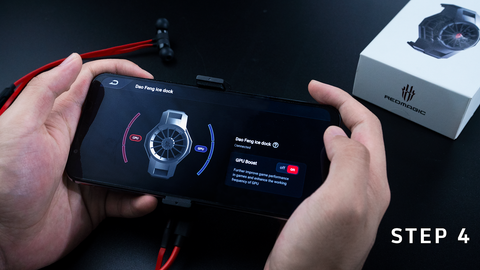
Inside the REDMAGIC 5S’s Game Space you can find the menu to control the GPU Boost. To find the menu for the GPU Boost, just tap on the control pad icon at the top right of the screen in the main menu of Game Space. From there tap on the Ice Dock icon in the list of possible accessories that you can link up to the phone. Inside the Ice Dock menu you can then toggle the GPU Boost on or off.
Step 5: Completing the setup

You have the Ice Dock all set up, cooling off the REDMAGIC 5S and charging it up while you enjoy the awesomely enhanced performance of the GPU Boost, but there’s still one more thing you can do to complete your setup. You may have even guessed it by now, using the headphone jack on the Ice Dock. To help ensure you have the most comfortable gaming experience, we have put a headphone jack on the Ice Dock so that the headphone cord isn’t in the way of your hands while holding your phone. With this last little touch, you can fully enjoy your gaming experience to your heart’s content without fear of overheating, running out of power, and you can enjoy it all with enhanced gaming performance AND comfort! Quite the winning combo.
If you don’t have a REDMAGIC Ice Dock yet and are looking to get your hands on one, just check out our online store today and order one up for yourself.
Using a REDMAGIC 5G and you’re wondering if the Ice Dock will work with your phone? Then you’re in luck! While there is no GPU Boost to activate in the REDMAGIC 5G with the Ice Dock, it will still clip onto the REDMAGIC 5G no problem to charge it off and cool it off at the sametime.


